



IT support is provided by the university’s Information Systems Department (DSI).
For any incident :
- Staff: log on to ENT, then in the « Support” menu, « Service request”, « Add a ticket” and enter your request, which will be automatically forwarded to members of the ISD.
- Students: please contact the secretariat of your component, department or laboratory, who will make the request on your behalf.
Network access
Updated on: 07/03/2023
At the Université Le Havre Normandie, you can access the Wi-FI and wired networks, as well as the VPN (Virtual Private Network) service when traveling on business or during teleworking sessions.
The Eduroam Wi-FI and wired network
Eduroam is a network service that enables users of a higher education institution that is a member of the eduroam network to gain access to the network at another member institution, without having to take any special steps.
Users must use their home institution’s usual authentication settings in all schools belonging to the Eduroam network.
Université Le Havre Normandie is a member of the Eduroam network.
Connections to the Eduroam network benefit from enhanced data protection, both during authentication and while using the network.
Read more
- Eduroam network (French version)
- Eduroam network (international version)
Conditions of access to the Eduroam network of the Université Le Havre Normandie
You must :
- Use the network in compliance with the Le Havre Normandie University network usage charter.
- Download the IT charter in the « Documents” section of this page.
- Be part of a higher education and research institution that is a member of the Eduroam project.
- Click here to consult the list of member establishments.
- Find yourself in a location offering access to the Eduroam network.
Access points to the Eduroam network
Université Le Havre Normandie offers two ways of connecting to the Eduroam network: Wi-Fi and wired.
- The Eduroam coverage areas are the same as those for « ulh-wifi” Wi-Fi, and cover a large proportion of the university’s campus buildings.
- Wired Eduroam sockets have also been installed in certain areas of campus buildings.
What authentication settings should I use to connect to Eduroam?
For members of the Université Le Havre Normandie (ULHN) community:
To log on to Eduroam, you need to use your login and password from the centralized directory, but please note that the login must be completed with the domain « @univ-lehavre.fr”.
Example: Jean dupond from Le Havre Normandie University
- Its directory ID: dupondj
- Its directory password: moZ28x (example)
- The domain of his home institution : @univ-lehavre.fr
His Eduroam authentication settings (wherever he may be) will be :
- eduroam identifier: dupondj@univ-lehavre.fr
- eduroam password: moZ28x
For people attached to an establishment other than ULHN:
To log on to Eduroam, use your login (completed by @your_institution’s_domain) and your password from your home institution.
To configure Eduroam on a computer, tablet or smartphone

You need to download an « installer” from the CAT EDUROAM service:
Warning: « Do not install on Windows computers”.
https://cat.eduroam.org/?idp=291

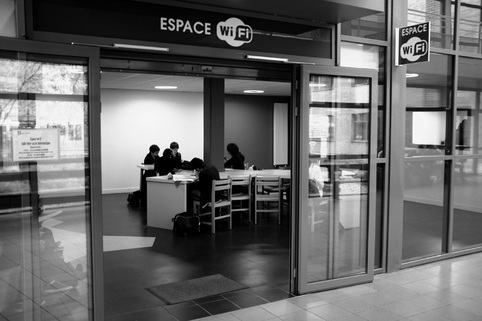
Le Havre Normandie University wireless network (wifi)
Wifi access points have been installed in common areas of the Université Le Havre Normandie. They enable all students with a laptop equipped with a wifi card to connect to the Internet.
Access conditions
Rules of use:
- The use of the wifi network implies the respect of the Charter of good use of the network.
- All activity on this network is recorded in a logbook.
- Your authentication parameters (username / password) are strictly personal and confidential. You are liable for any breach by a third party using your login details.
Rules for protecting your computer and your data:
- You must take precautions to prevent infection (viruses) of your computer and those of your colleagues.
- Update your operating system patches regularly.
- Install and regularly update anti-virus software.
Use of the wireless network provided by the university implies full acceptance of the above rules. Should you fail to comply with these rules, the university reserves the right to deactivate your access account.
You must also :
- Be a student enrolled at the Université Le Havre Normandie.
- A wifi-equipped laptop (802.11b or 802.11g standards)
- You are in an area covered by the Université Le Havre Normandie wireless network (wifi).
Wifi zones
Wi-Fi zones have been deployed in most buildings on the university’s three campuses.
Configuring your cell phone for the captive portal of the ulh-wifi network
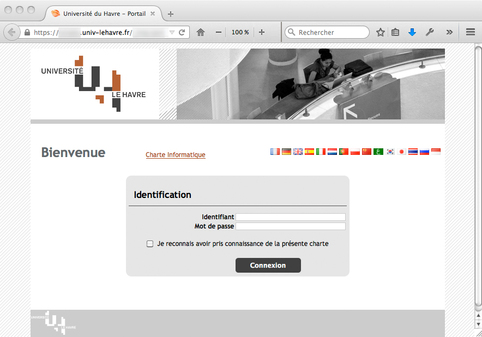
How do I configure the university’s wireless network connection properties on my laptop?
- Step 1: Connect to the « ulh-wifi” wireless network
- Step 2 Launch your Web browser (Internet Explorer / Mozilla / Netscape /…) and wait a few seconds for the authentication page to appear.
- Step 3 Enter your username and password, check the box « I have read and understood this charter” and click on « Login”. Login
If your browser prompts you to open a popup window, please accept it. Leave it open while you use the network, then click on « click to logout” to disconnect properly from the network.
What should I do if my wifi connection fails?
1. Make sure you have activated your wifi card on your laptop.
2. Make sure you’re in an area covered by Wi-Fi by updating the list of available wireless networks.
How do I find out my username and password?
Your login and password are automatically generated in the centralized directory:
Directory : Manage your account (student)
Directory : Manage your account (Université Le Havre Normandie staff)
Technical support
This service is provided by the university’s Information Systems Department (DSI).
- If you have problems connecting to the wifi network.
- If you need information.
You can write to us at the following address: wifi@univ-lehavre.fr
It is preferable to use your university mailbox for correspondence within the university, thank you.
VPN user guides
Université Le Havre Normandie’s VPN (Virtual Private Network) service enables staff on business trips or at home to access data/applications on the university network as if they were on the premises.
To do this, you need an Internet connection and a tool installed on your computer.
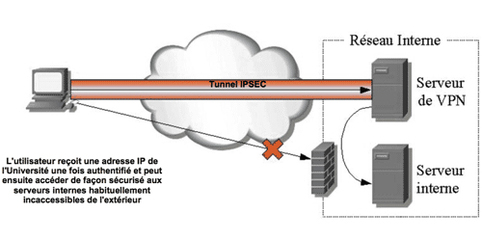
Configure your computer to use the university VPN
All documentation and software are available on the EUREKA platform with restricted access.